

Prerequisites
Before getting started, ensure you have:Cloud Account Access
Account Permissions
- Cloud account with billing access (AWS, Azure, or GCP)
- Ability to create necessary integrations
- Cost and usage data access
Cost Visibility Setup
Cost Management Tools
- AWS: Cost and Usage Reports (CUR) configured
- Azure: Cost Management + Billing enabled
- GCP: Billing export configured
- Basic understanding of your spending patterns
Basic Understanding
Cloud Knowledge
- Familiarity with your cloud services
- Understanding of your workload patterns
- Desire to optimize cloud costs
Baseline Analysis
Current State Knowledge
- Knowledge of top spending services
- Understanding of usage patterns
- Existing cost monitoring practices
Recommended: Set up native cost management tools (AWS Cost Explorer, Azure Cost Management, GCP Billing) before connecting to Archera. This provides baseline understanding and enables better optimization decisions.
Step 1: Create Your Archera Account
Navigate to Archera
Go to app.archera.ai and click “Sign Up” to create your account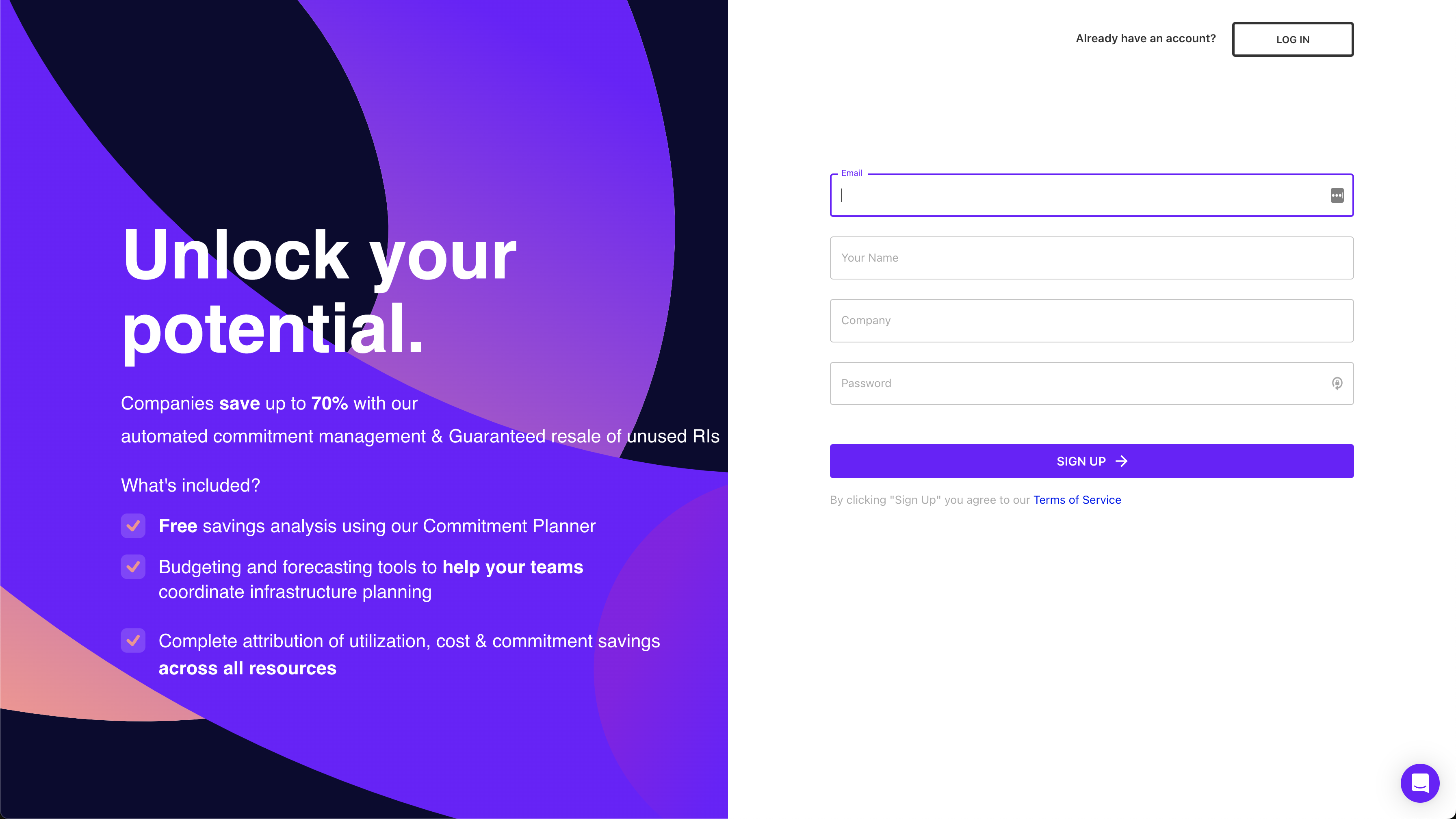
Provide Account Details
Enter your email, create a password, and provide basic organization information
Step 2: Connect Your Cloud Provider
Once your account is created, you’ll need to connect your cloud environment. Archera supports AWS, Azure, and Google Cloud Platform.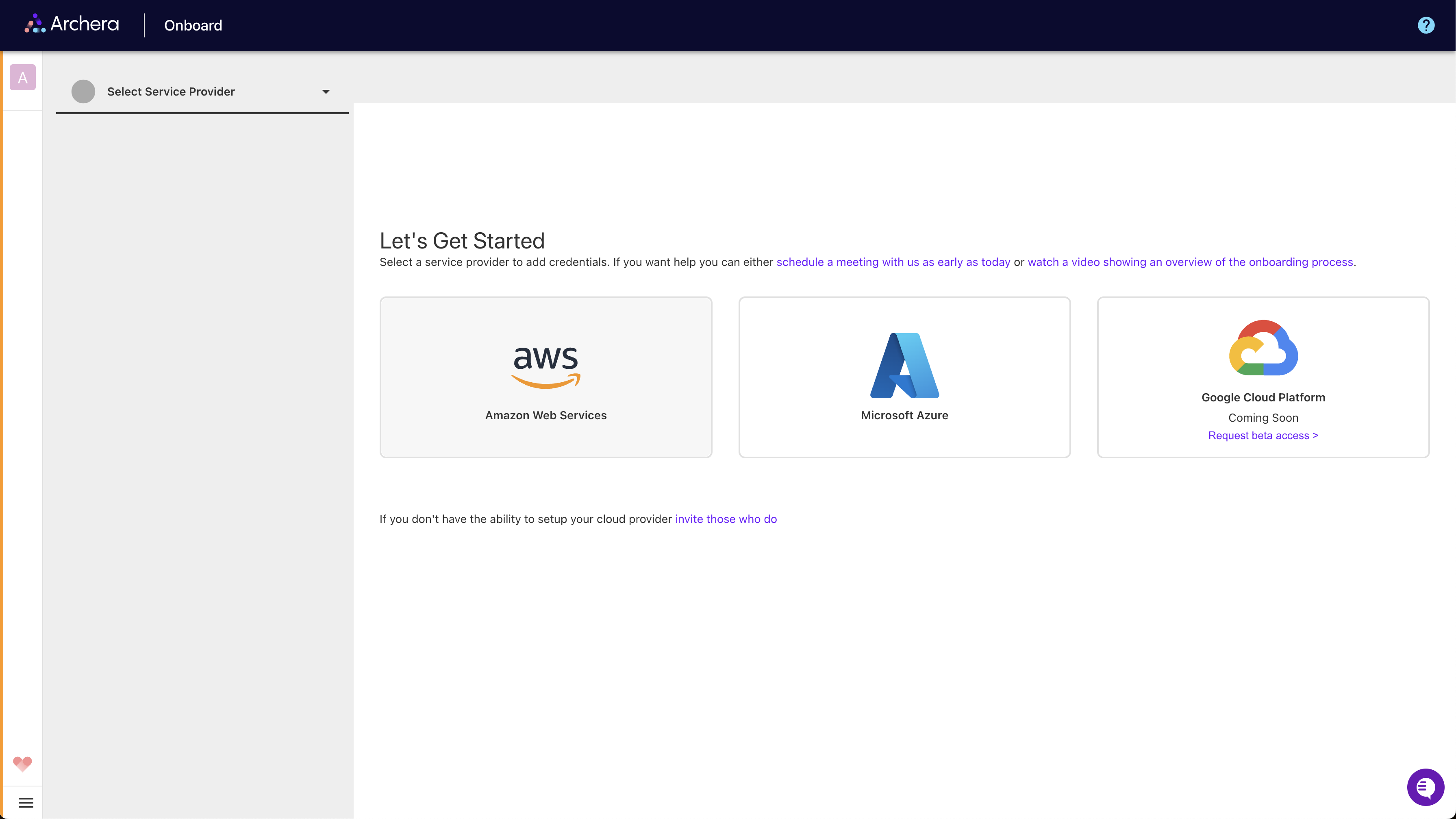
Cloud Provider Integration
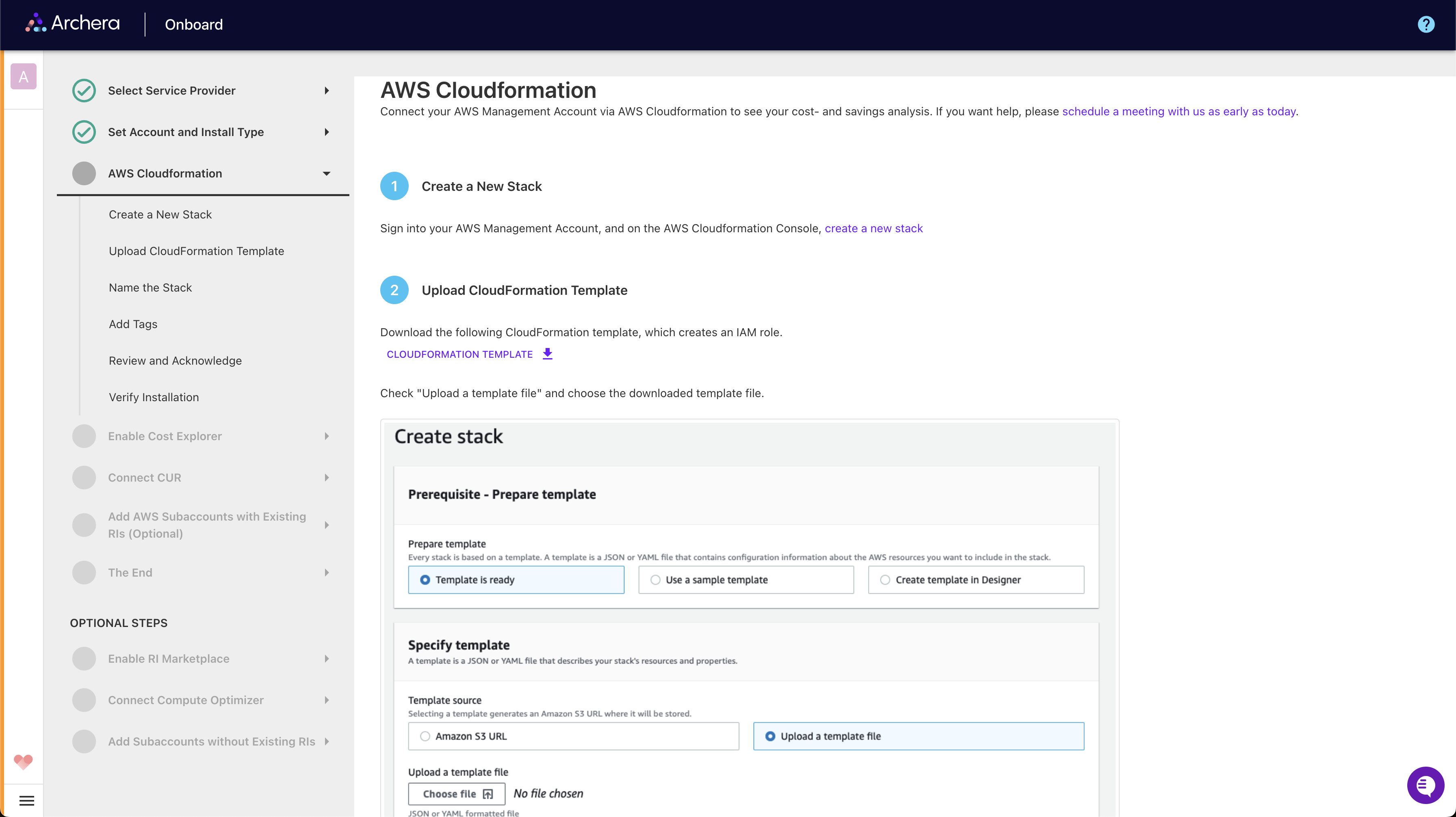
Archera uses secure, native integration methods for each cloud provider:AWS Integration
AWS Integration
CloudFormation Deployment:
- Launch CloudFormation Stack: Pre-configured template for secure integration
- IAM Role Creation: Read-only role for cost analysis
- Minimal Permissions: Only cost optimization permissions
-
No Infrastructure Access: Never accesses running workloads
Azure Integration
Azure Integration
Service Principal Setup:
- App Registration: Create service principal in Azure AD
- Reader Permissions: Billing and cost management access
- Secure Connection: OAuth-based authentication
- Cost Data Only: No access to operational resources
Google Cloud Integration
Google Cloud Integration
Service Account Configuration:
- Service Account: Create dedicated service account
- Billing Permissions: Cloud billing and asset inventory access
- JSON Key: Secure key-based authentication
- Read-Only Access: No modification permissions
What Archera Accesses
What Archera Accesses
Required Data Access:
- Cost and Usage Data: To analyze spending patterns
- Resource Information: To recommend appropriate commitments
- Billing Information: To calculate potential savings
- Your application data or workloads
- Running instances or services
- Security configurations
- Any operational infrastructure
Connection Process
Select Cloud Provider
Choose your cloud provider (AWS, Azure, or Google Cloud) from the integration options
Step 3: Initial Cost Analysis
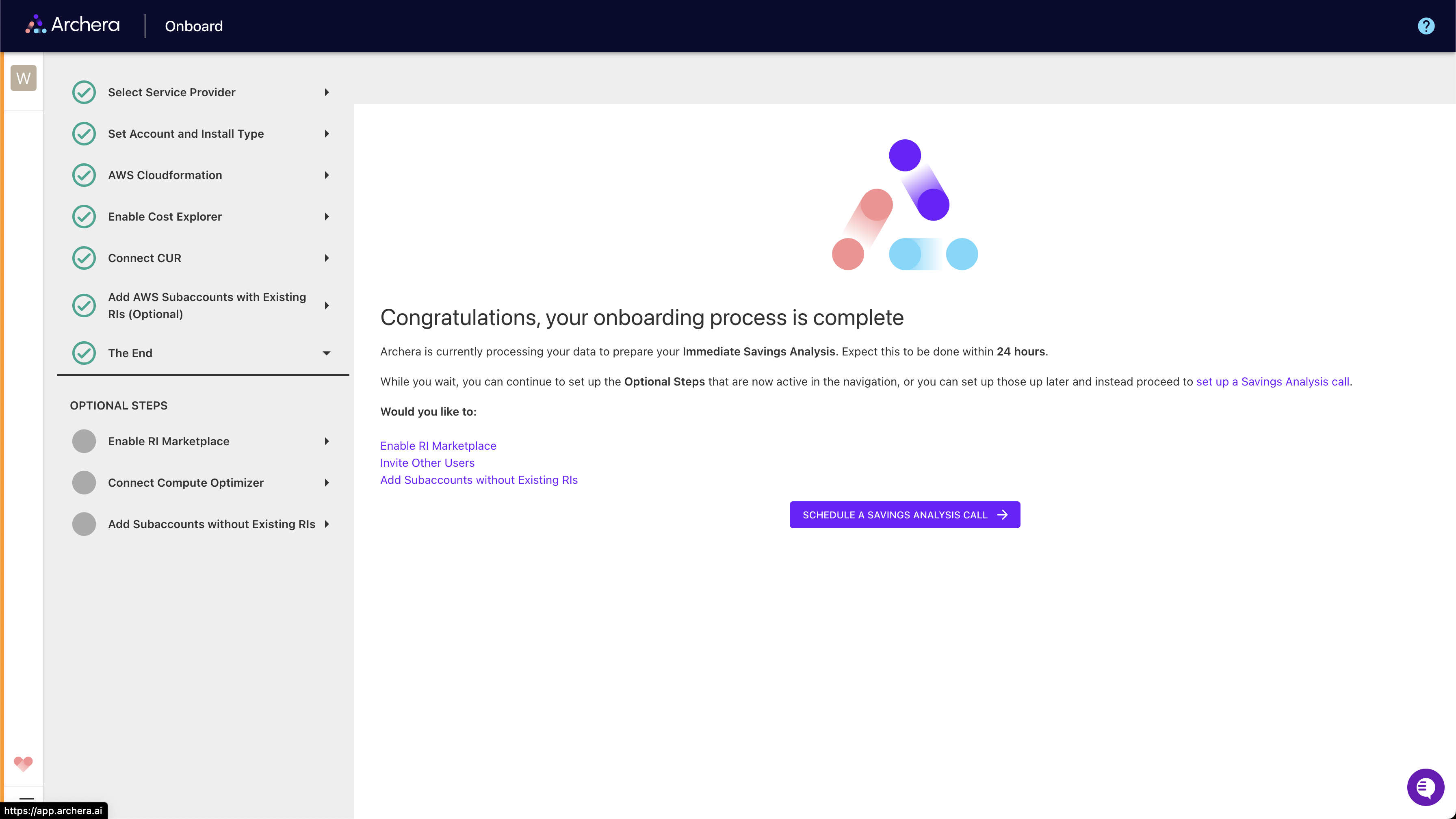
After connecting your cloud account, Archera will begin analyzing your usage:Onboarding Process: Connection is completely free and purely to access your billing data so Archera can make accurate recommendations based on your actual usage numbers. After connecting, it takes 24-48 hours to unlock the full platform as historical data is processed.
Data Processing Timeline
Initial Connection
5-10 Minutes
- Account connection verification
- Basic cost data import
- Infrastructure discovery
Full Platform Access
24-48 Hours
- Historical usage analysis
- Savings opportunity identification
- Complete platform functionality unlocked
What You’ll See First
Once initial processing completes, you’ll have access to: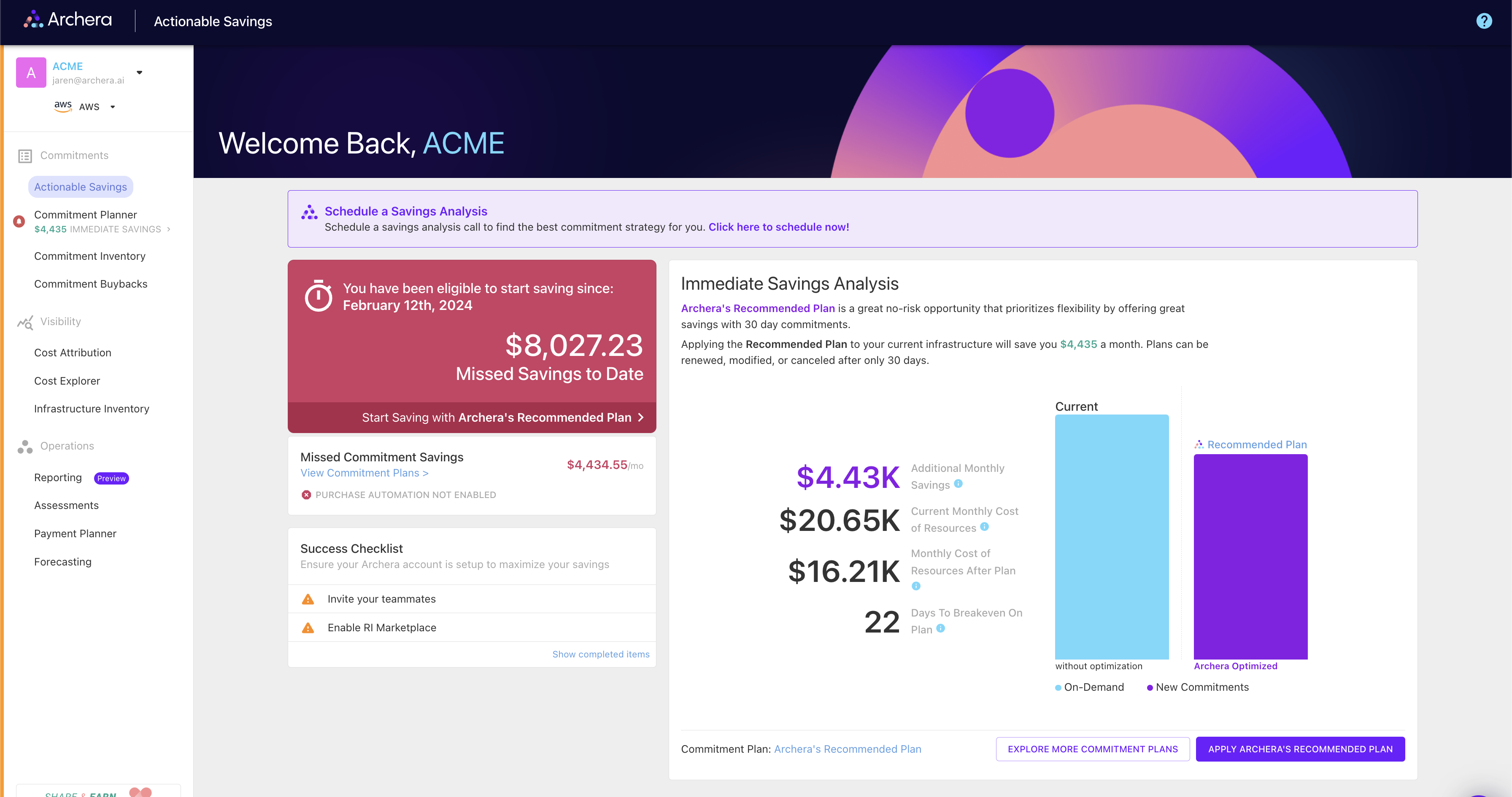
- Immediate Savings Analysis: Quick wins for covering on-demand usage with short-term commitments
- Commitment Planner: Three default strategies (Recommended, Balanced, High Savings)
- Cost Dashboard: Overview of your current spending and optimization opportunities
Step 4: Explore Your Savings Opportunities
Immediate Savings Analysis
Your first view will show immediate opportunities to cover on-demand usage with 30-day commitments:- Stop the Bleeding: Identify on-demand resources that should have commitments
- Quick Implementation: Apply 30-day commitments for immediate savings
- Risk-Free Start: Begin optimization without long-term commitments
Commitment Planner
Explore three pre-configured commitment strategies: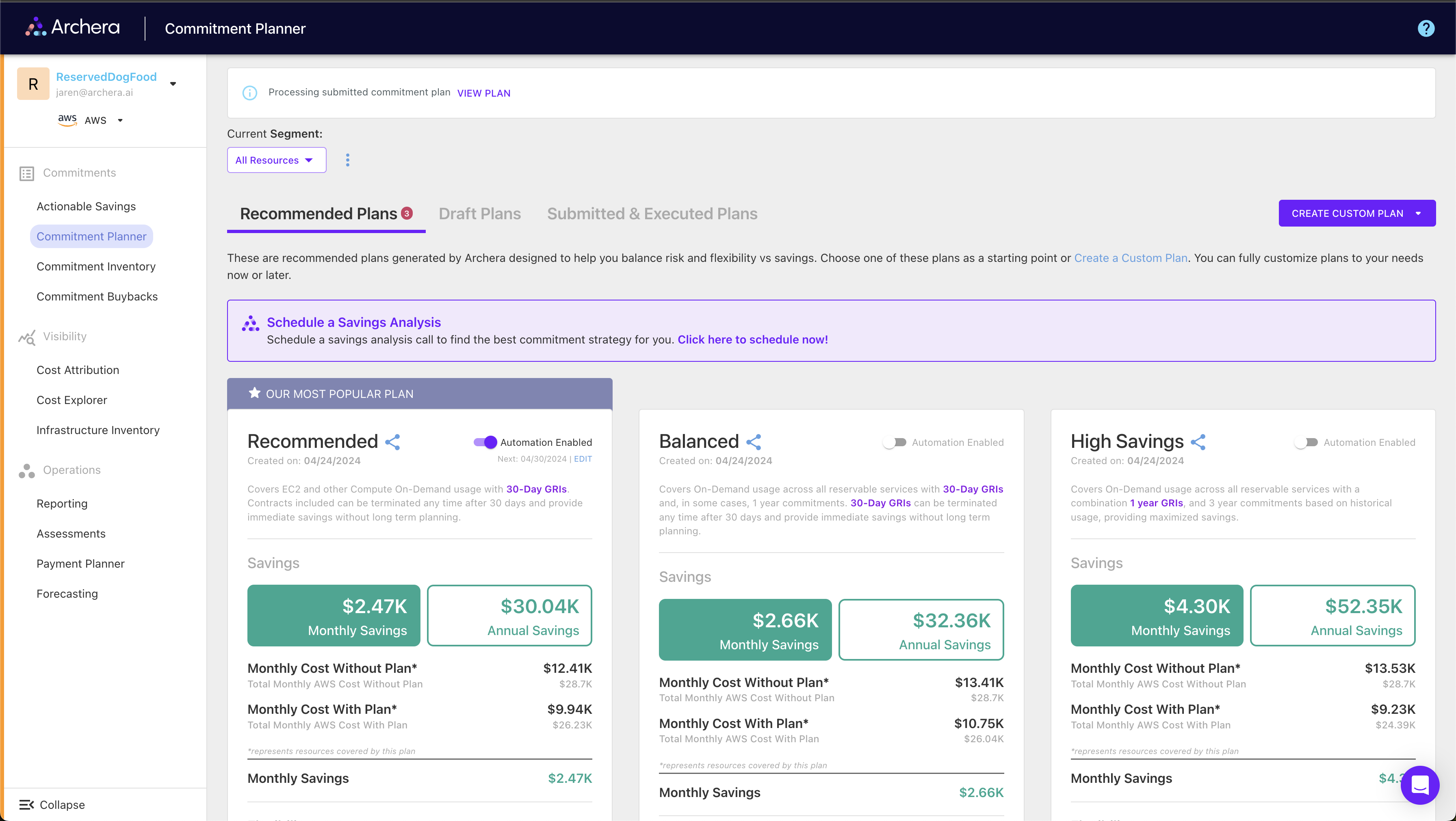
Recommended Plan
Recommended Plan
Focus: Maximum flexibility with immediate savings
- Primarily 30-day guaranteed commitments
- Lowest risk, moderate savings
- Perfect for getting started
Balanced Plan
Balanced Plan
Focus: Optimal balance of savings and flexibility
- All reservable services included
- Mix of 30-day and 1-year commitments
- Most popular choice for ongoing optimization
High Savings Plan
High Savings Plan
Focus: Maximum cost reduction
- 3-year commitments with upfront payments
- Highest savings potential
- Reduced flexibility, maximum discounts
Step 5: Implement Your First Plan
Applying a Commitment Plan
Setting Up Automation (Optional)
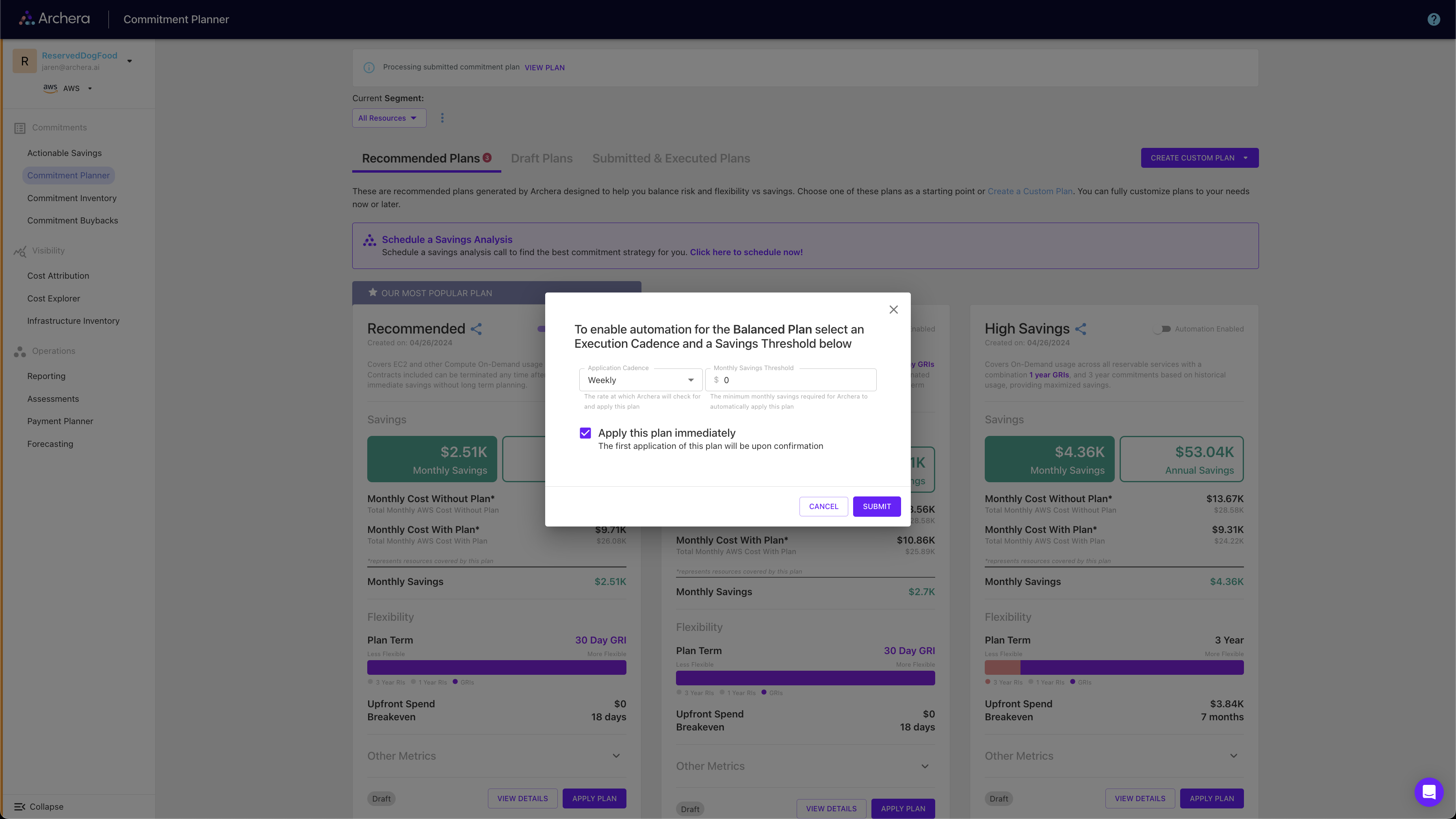
Enable automation policies for hands-off optimization: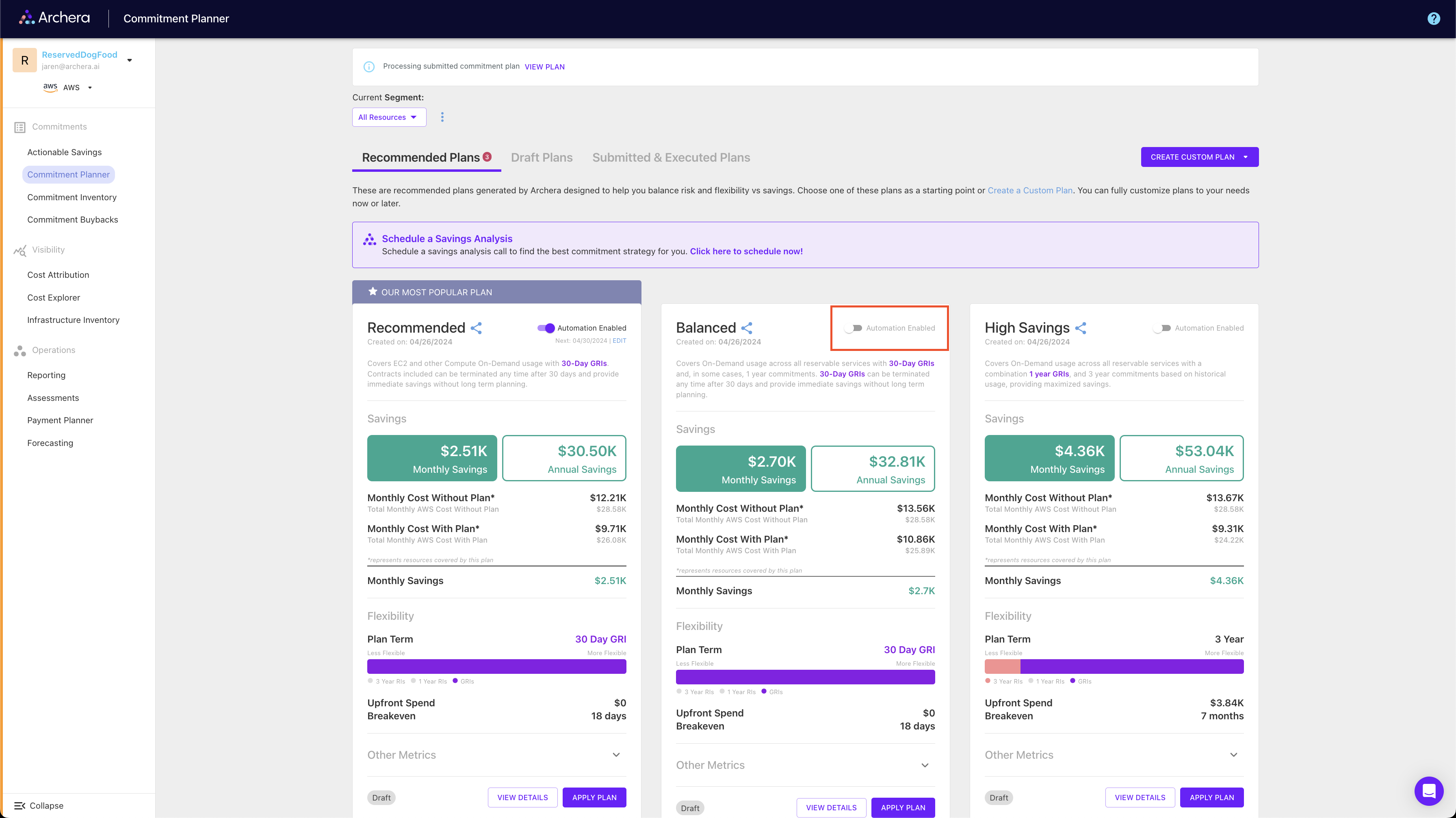
- Configure Thresholds: Set minimum savings amounts to trigger automation
- Choose Cadence: Select weekly, monthly, or quarterly evaluation
- Monitor Performance: Track automated savings and adjust as needed
- Maintain Control: Cancel or modify policies anytime
Step 6: Ongoing Management
Platform Features
Once you’re up and running, take advantage of:Custom Plan Creation
Build Your Own Strategy
- Create plans tailored to your needs
- Mix commitment types and terms
- Save and share plans with your team
Performance Monitoring
Track Your Success
- Monitor utilization and savings
- View breakeven timelines
- Analyze coverage across services
Team Collaboration
Multi-User Support
- Invite team members
- Set permissions and roles
- Share plans and reports
API Integration
Programmatic Access
- REST API for custom integrations
- Export data for reporting
- Automate workflows
Support and Resources
Getting Help
Documentation
Comprehensive guides and API documentation
Support Center
24/7 support and knowledge base
Best Practices
- Start Small: Begin with 30-day commitments to understand the platform
- Monitor Regularly: Review savings and utilization weekly
- Use Automation: Enable policies once comfortable with manual optimization
- Plan Ahead: Consider business changes when selecting commitment terms
Security and Compliance
Archera maintains enterprise-grade security:- SOC 2 Type II Compliance: Audited security controls and processes
- Least Privilege Access: Minimal required permissions for cost optimization
- No Data Storage: Cost data processed in real-time, not stored
- Encryption: All data transmitted using industry-standard encryption
Free Platform: Archera’s platform is completely free to use. Connection is purely to access billing data for accurate recommendations. There are no hidden fees, and you keep 100% of your optimized savings. Full platform access is available 24-48 hours after connecting your cloud account.
Ready to Start Optimizing?
Have questions about getting started? Contact our team for personalized onboarding assistance.Additional Resources
Workshop Content
For hands-on learning, check out the official AWS Workshop on cost optimization with Archera:AWS Cost Optimization Workshop
Interactive workshop covering:
- Understanding commitment-based discounts
- Leveraging 30-day commitments
- Hands-on platform experience
- Best practices for optimization