

Prerequisites
- Access to Archera Organization
- Ability to create an API key and copy your org ID
- Access to Claude with Custom Connectors enabled
Step 1 — Create an Archera API key and find your org ID
- Open Archera’s API key settings: Archera API Settings
- Generate a new API key
- Copy these two values and keep them handy:
- API key
- org_id
Step 2 — Add the MCP Custom Connector in Claude
- Go to Claude: https://claude.ai/settings/connectors
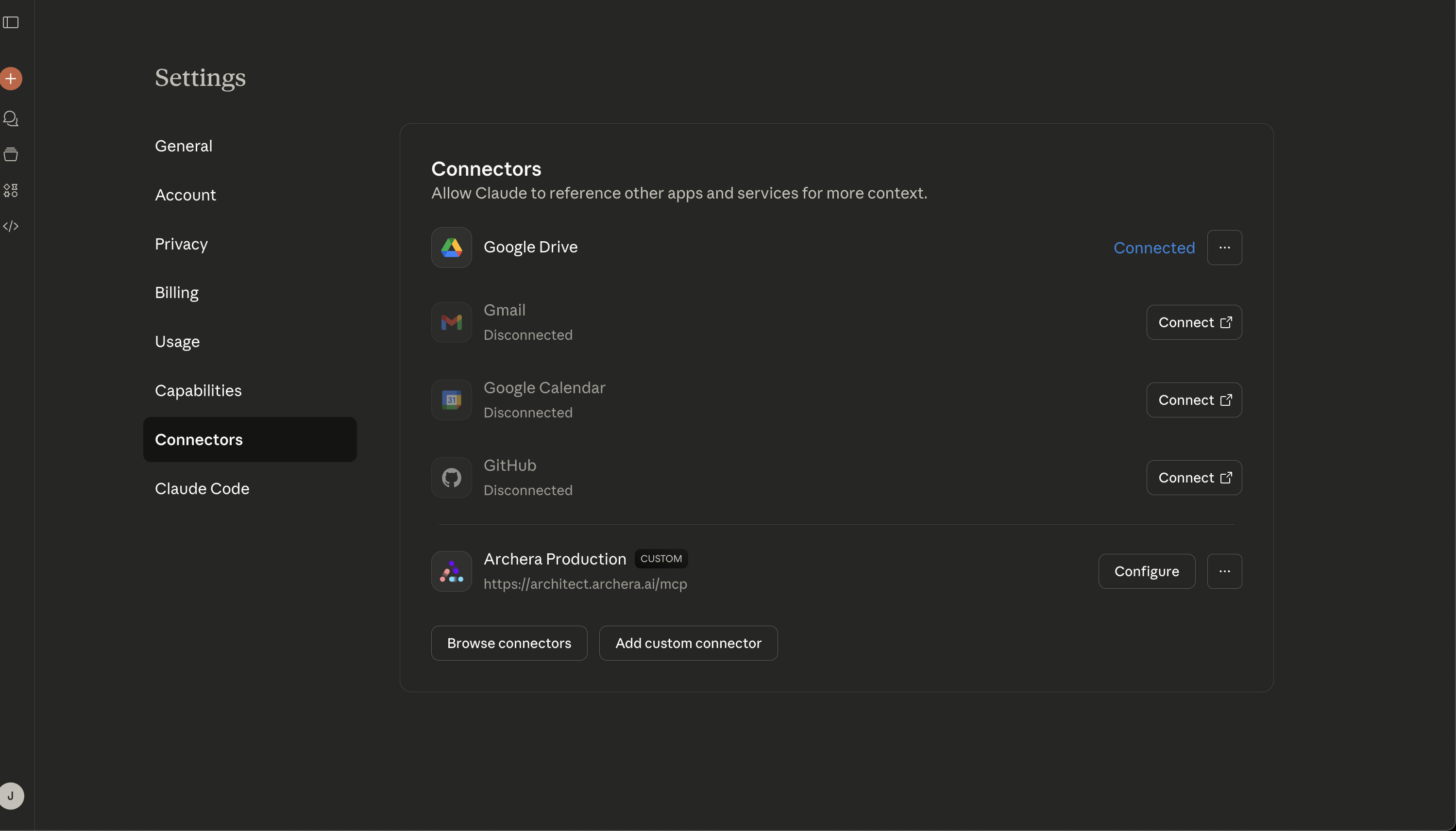
- Choose Add Custom Connector
- For the connector URL, paste the production endpoint:
When prompted by the connector, provide the API key and org_id you copied in Step 1.
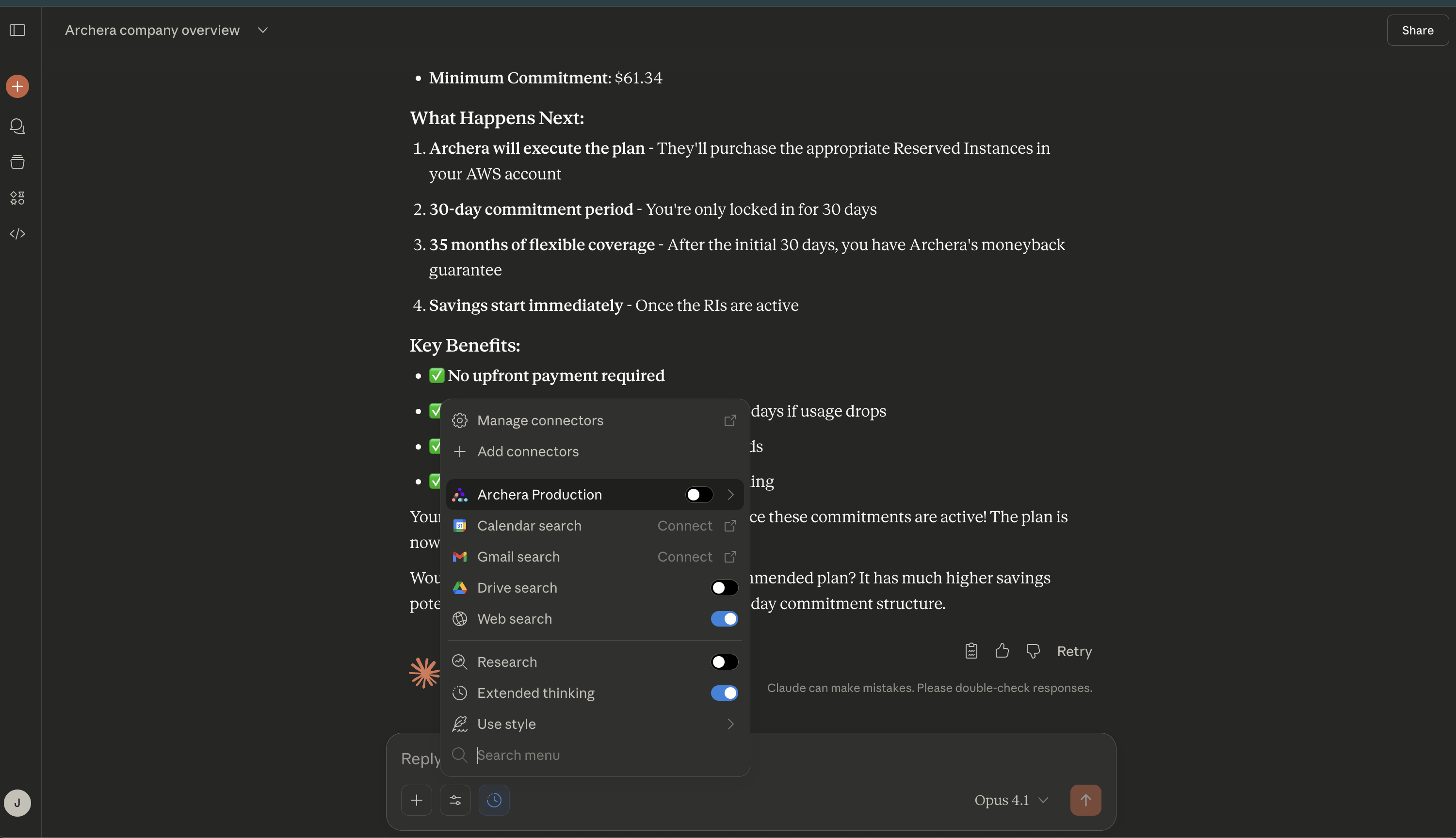
Step 3 — Try it out in a new chat
Start a fresh Claude chat and ask Archera questions like:- “What are my available savings on Archera?”
- “What is my lifetime savings on Archera?”
- “Apply the recommended plan.”
What to expect
The MCP connector provides direct access to Archera’s API through Claude, allowing you to:- Query your cloud commitment metrics and savings
- View commitment plans and recommendations
- Access detailed commitment plan information
- View your cloud resources and usage data